|
Quick Guide
Email notifications
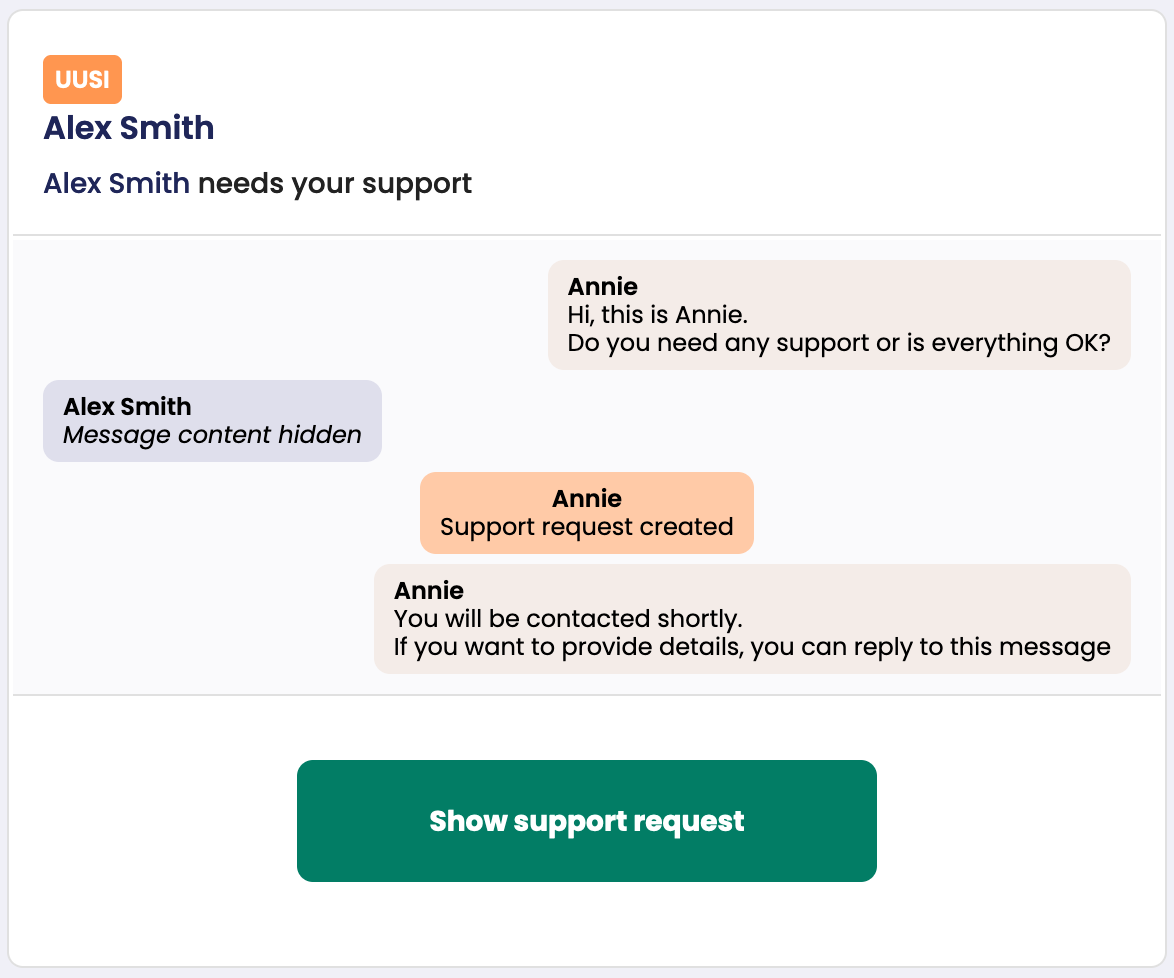
If a student requests your help, you will receive an email from Annie.
To see the support request, click on "Show support request".
Login
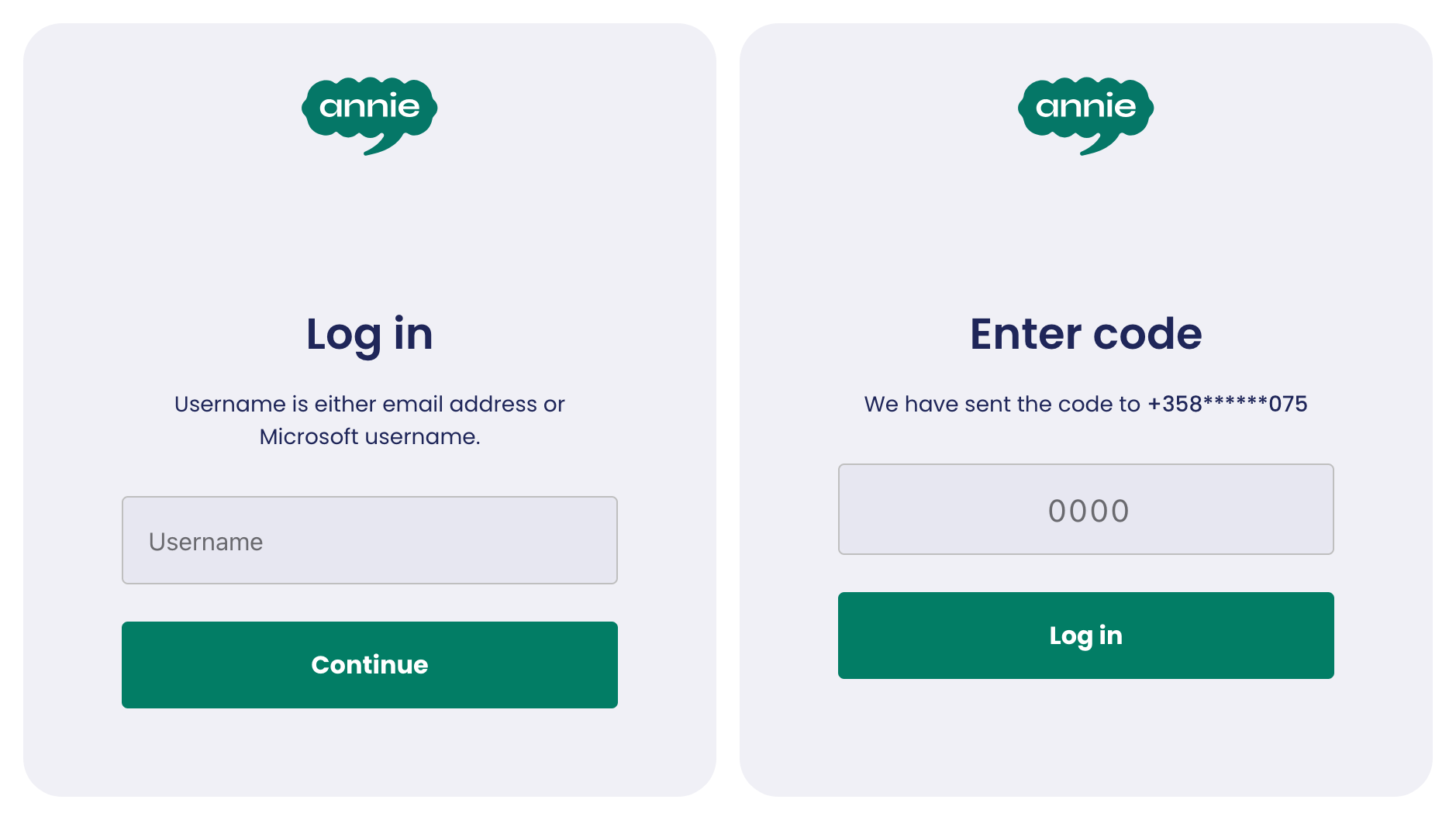
Available login methods may vary by organization. For example, Microsoft Login refers to the credentials you use to log in to your organisation's systems.
You can also log in with a one-time password, which is sent to your email or SMS.

If you choose to log in with a one-time password, you will first be asked to enter your username. This is usually your email address. Usernames are usually in the form "firstname.lastname@organisation.com", "username@organisation.com" or "username".
The login code will be sent to your email address or by SMS. Once you have received the code, enter it in the login field and log in.
Support Request
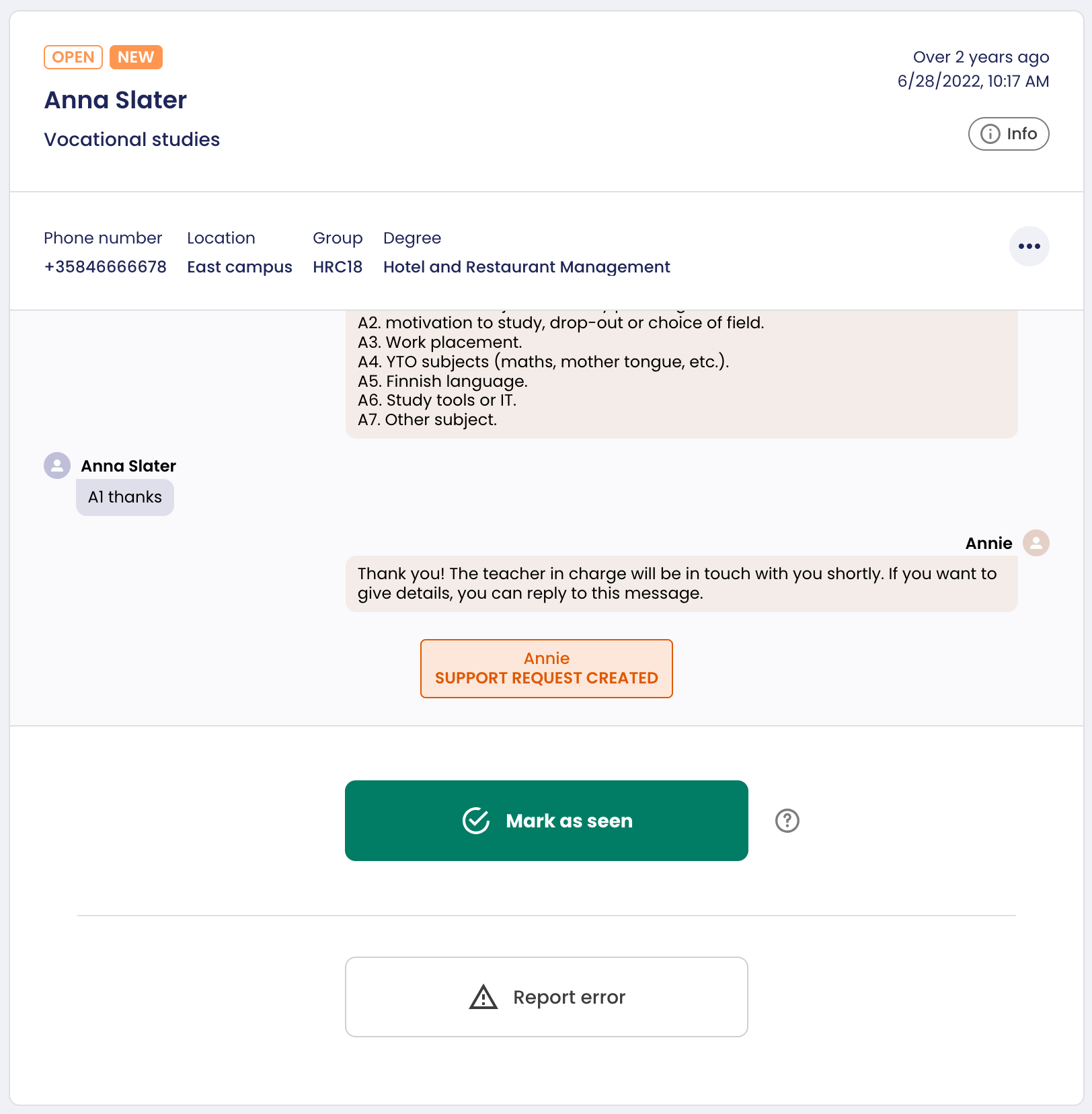
Here you can see the student's support request and message history with the bot.
When you click the Mark as seen button, the student will receive a text message that you have seen their support request.
If you think there is an error in your support request (e.g. it has been assigned to the wrong support provider or there is a technical error), you can report it by selecting "Report error". The error report will be sent to the Annie team.
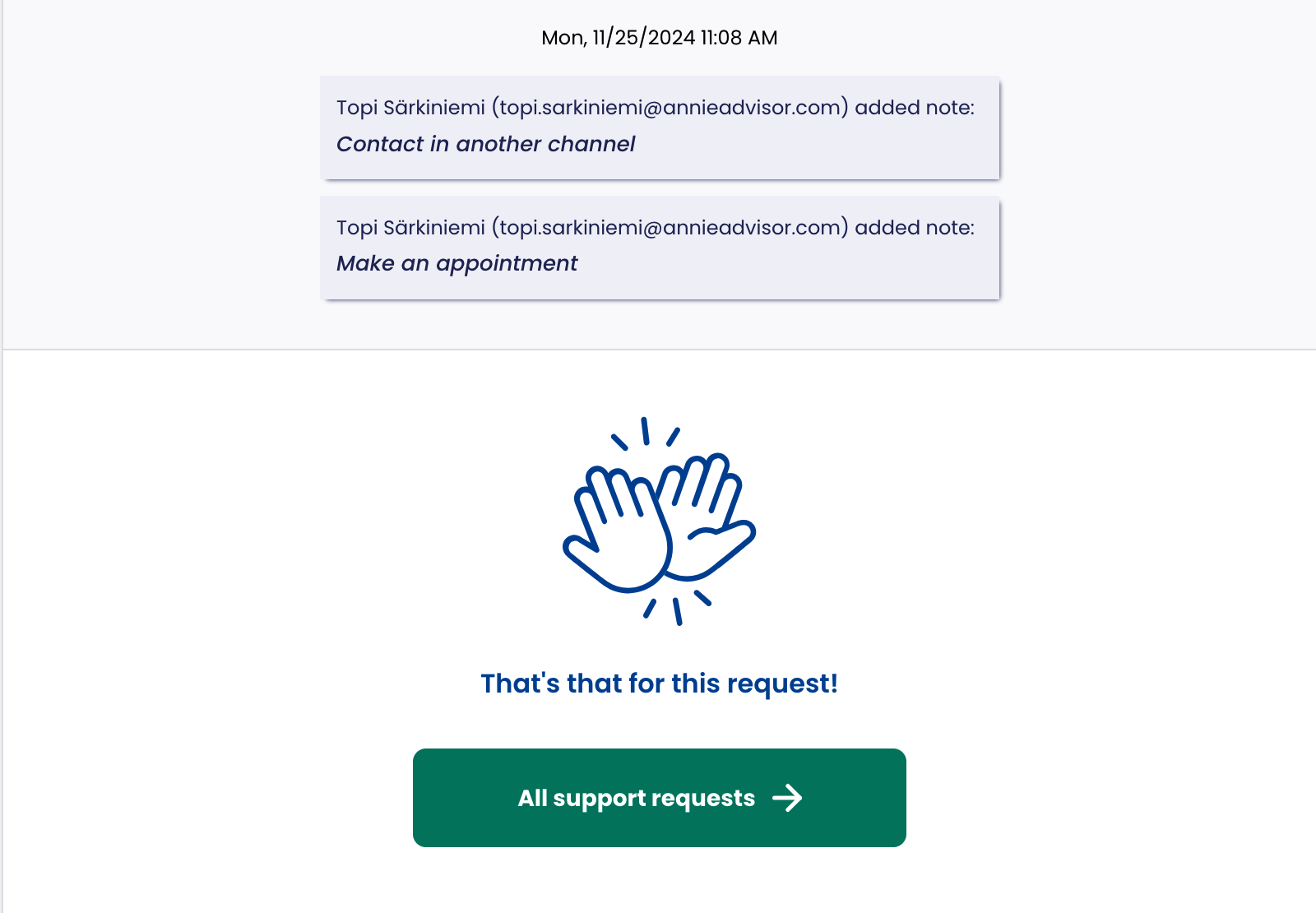
You can contact the student as you normally would and make a note to Annie. For example, select "Handled via other means" or "Called student" and then clicking the "Add a note" button.
If you wish, you can also send the student a text message via Annie by selecting "Send text message".
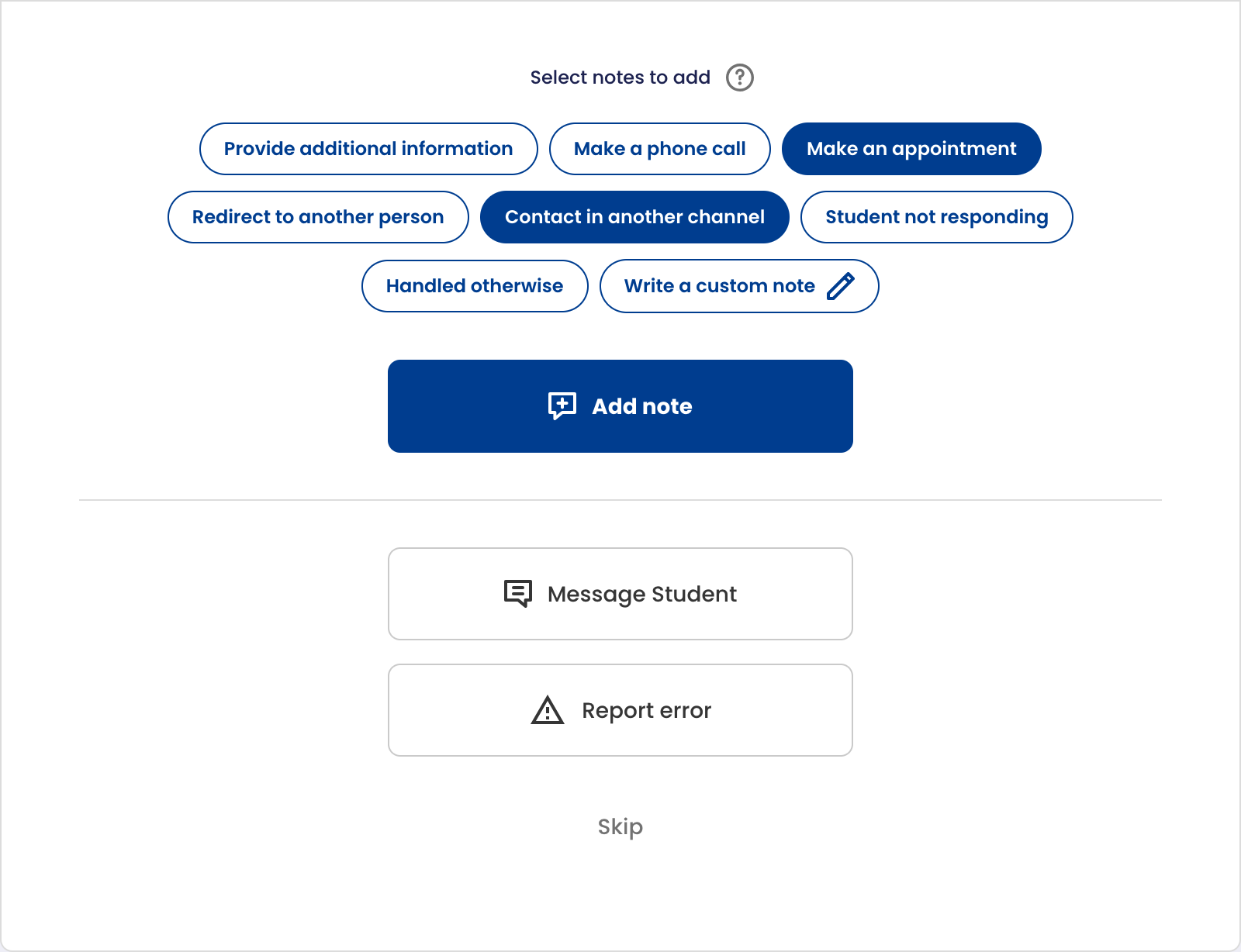
Your notes and the text messages you've sent will appear in the support request message history. Your notes are not visible to the student.
Nyt tukipyyntö on käsitelty.
You can view all support requests by selecting "All support requests".
My Support Requests
You can see all the support requests assigned to you in this view.
You can search for support requests by student name, group or subject, for example.
A support request can have three statuses:
- NEW: Unopened support request.
- IN PROGRESS: The support request has been opened, but not marked as seen.
- SEEN: The support request has been marked as seen.
The most recent note added to the support request is also shown in this view.
Annie will send you an email if you receive a new support request or you get a new message from a student to an existing one. 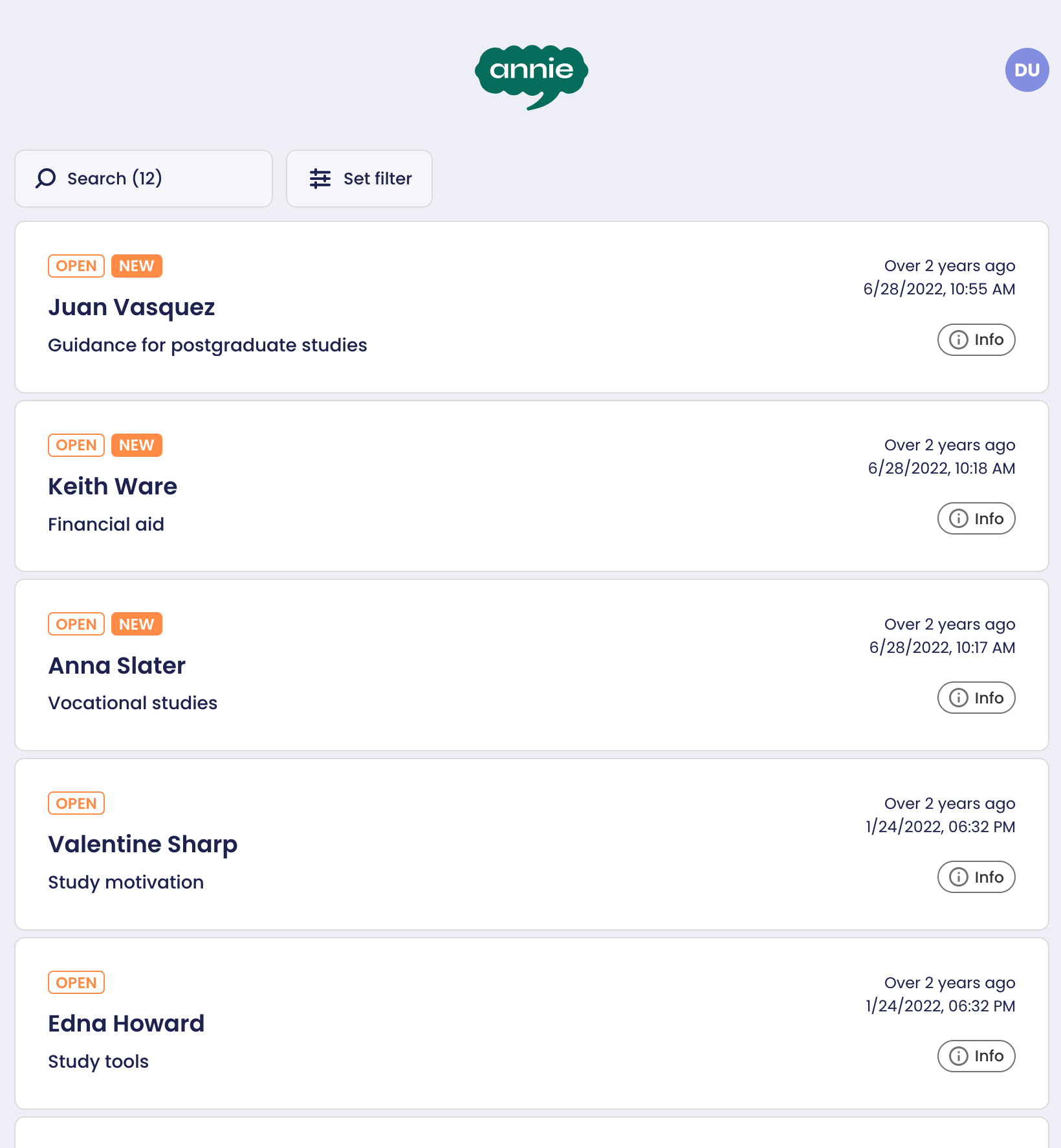
Group View
A real-time group view for support providers who are responsible for a group of students (e.g. responsible teachers and group leaders).
Students listed by status:
- Requested your support. You are able to mark as seen all the support requests assigned to you at once.
- No response. The student has not responded (yet).
- Response in progress. The student is talking to Annie, but has not yet asked for support.
- Message delivery failed. There may be an error with the phone number, students' phone may be offline, or something else prevents the message delivery.
- Everything OK. The student has reported that everything is OK.
- Requested other support. The student has requested support from someone else. Because of data security, the exact topic is not visible here.

|
